
How To Check a Photo on iPhone With Face Search Tools
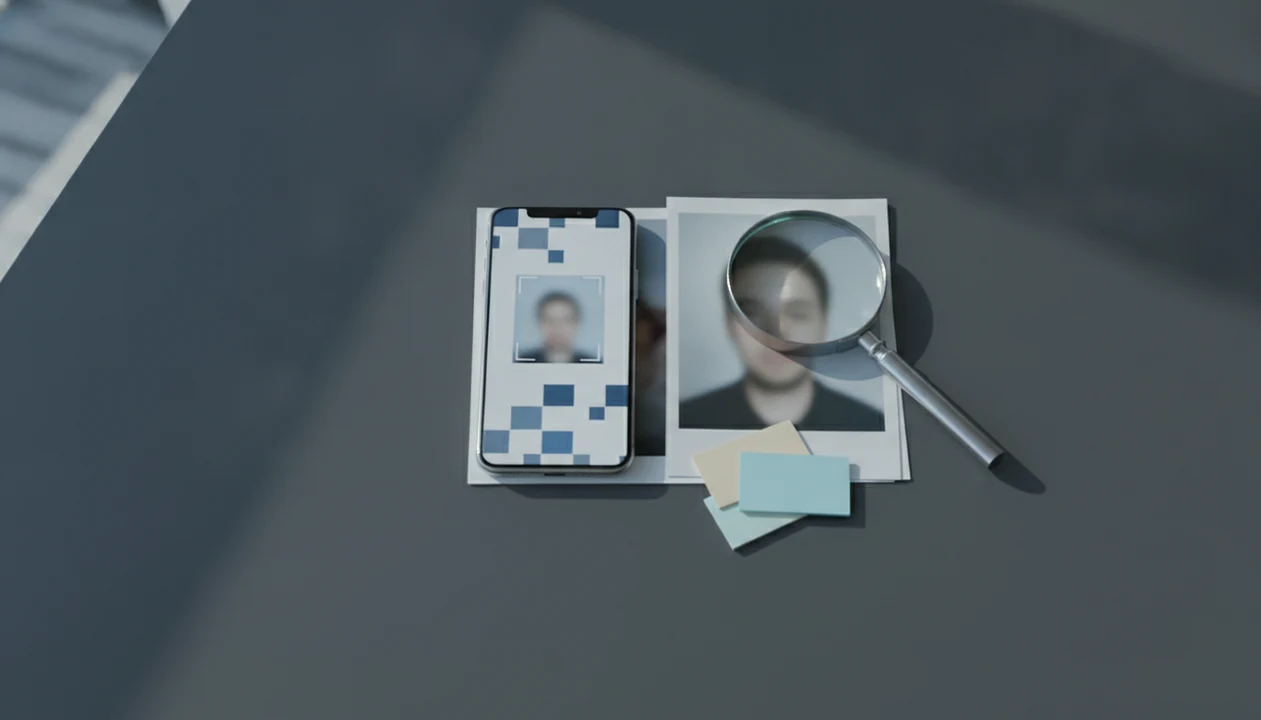
To learn how to check photo on iPhone, save the image, inspect its photo details, crop the face or distinctive area, upload both the full image and crop to browser-based reverse image or face search tools, then compare any matches against scam and profile red flags.
> Definition: Face Search App publishes face-search guidance for everyday users, including how to compare reverse image tools, check reused profile photos, and document scam-photo clues without treating a match as proof.
TL;DR
- Start in the iPhone Photos app: check the image info, zoom for edits, and make a clean crop of the face or key object.
- Run both the full image and the cropped version through browser-based reverse image or face search tools from Safari, Chrome, or another mobile browser.
- Treat search results as evidence, not proof: combine photo matches with behavioral red flags like money requests, refusal to video chat, and inconsistent stories.
What “how to check photo on iPhone” means for scam and dating photos
Checking a photo on iPhone means using the phone to inspect a saved image, crop it, and search where it appears online. For scam and dating situations, people usually mean a screenshot, profile photo, marketplace image, or texted selfie that feels off.
That is different from searching your camera roll by “beach,” “dog,” date, album, or location. The goal is not organization. The goal is verification.
A practical how to check photo on iPhone workflow has three evidence layers: iPhone photo details, reverse image or face search, and behavioral context. We usually keep three tabs open during review: the original profile, the search result, and the platform help page. That keeps the source trail visible while you decide what to document.
A possible match is not proof.
Five iPhone photo check facts before you upload anything
Before you upload a suspicious photo, use the iPhone’s local tools first and understand what they can’t prove. These five facts prevent the most common false starts.
- Fact 1: The Photos app Info button can show date, time, device, file source, and sometimes location for an image.
- Fact 2: Visual Look Up can recognize some objects, landmarks, pets, plants, and similar content, but it is not a scam detector.
- Fact 3: Cropping the face or distinctive area often improves reverse face search iPhone photo results because background clutter gets reduced.
- Fact 4: Search both the original photo and the cropped version; the full image may find reposts, while the crop may find face-focused matches.
- Fact 5: No-result searches do not prove the person is real. Private photos, new uploads, edited images, and AI-generated faces may not appear anywhere indexed.
The download folder gets messy fast. Name the crop clearly before uploading.
How reverse face search on an iPhone photo works
Reverse face search on an iPhone photo works by sending an image to a third-party system that compares visual features against indexed web images. The matching happens outside the iPhone, not inside the Photos app.
Browser-based tools may compare image copies, face structure, backgrounds, clothing, logos, and other visual patterns. Some systems use image embeddings, which are numerical summaries of visual features. In plain English, the tool is looking for images that resemble yours or share the same source file.
Full photos and crops can return different results. A full dating photo might match a public repost because the background, pose, and compression are similar. A tight face crop can ignore the café wall, group-photo shoulder, or beach umbrella that distracts the search.
Visual Look Up is different. It recognizes supported categories; it does not search public pages for reused dating or scam photos.
Before you check a dating photo on iPhone
Before you check a dating photo on iPhone, preserve the conversation and reduce privacy exposure. Save a copy of the photo or take a screenshot, but do not delete the original chat, profile page, username, or timestamps.
Avoid uploading private images, minors’ photos, sensitive documents, medical images, or non-consensual intimate images. If the image came from someone else’s private message, treat it carefully. Browser uploads usually send the file to a third-party service, so review privacy terms before giving access.
Keep notes separate from the image search. Record profile names, dates, claims, requests for money, crypto pitches, and sudden emergencies. If you’re checking on behalf of a family member, a face search app for parents guide should focus on public links and safety steps, not private surveillance.
Hands pull back from the send button for a reason.
How to use iPhone tools to check a suspicious photo
Use this iPhone workflow when a photo feels suspicious, especially in a dating, marketplace, or unexpected-message context. It keeps the original file intact and separates clues from assumptions.
- Save the image or screenshot to Photos, and keep the original conversation available.
- Open the photo and tap the Info button or swipe up to inspect date, time, device, file source, and location details.
- Zoom in for artifacts such as mismatched lighting, warped backgrounds, odd hands, repeated textures, or unnatural edges.
- Crop tightly around the face or distinctive object and keep the original version too.
- Upload the original and crop in a mobile browser to reverse image or face search tools.
- Review matches, profile names, scam reports, and repeated uses before deciding whether to reply, block, report, or ask for live verification.
For phone-wide workflows beyond iPhone, the broader how to reverse face search with phone process uses the same evidence-first approach.
Step 1: Check iPhone photo details for date, location, and device clues
How do I check photo details on iPhone? Open Photos, select the image, then tap the Info button or swipe up from the photo.
You may see the date, time, camera model, file name, file source, resolution, and a location map. You may also see very little. Screenshots, social app downloads, and forwarded images often lose original capture details before they reach you.
Look for contradictions, not certainty. A claimed live selfie with no original capture data is a risk signal, especially if the sender says it was taken “right now.” A location map that conflicts with a travel story is also worth noting. We like to save a screenshot with the date visible before a result page or profile changes.
Metadata can be stripped or altered. Treat it as one clue, never a verdict.
Step 2: Crop the face for a better reverse face search iPhone photo result
Duplicate the photo before cropping so the original remains unchanged. In Photos, tap Edit, crop around the face, then save the duplicate as a separate search version.
Keep the crop tight enough that the face is clear, but do not cut off important features like hairline, ears, glasses, or facial outline. Avoid large empty backgrounds unless the background is the clue. A hotel logo, uniform patch, tattoo, street sign, or unusual necklace may deserve its own crop.
Create more than one crop when the image has several searchable details: face-only, outfit, logo, landmark, tattoo, or object. The full image can find reposts because it preserves the whole scene. The crop can reduce distracting context and surface matches that the original photo missed.
For public-profile investigations, a find person by photo workflow should still corroborate before acting.
Step 3: Upload the iPhone scam photo check in a mobile browser
To run an iPhone scam photo check, open a browser-based image search tool in Safari, Chrome, or another mobile browser. Look for the camera, image, or upload icon, then choose the original photo or crop from your Photos library.
Run more than one search. Upload the full image first, then the face crop, then any distinctive object crop. Search results opened in separate tabs are easier to compare than a single scrolling page, especially when names and images repeat across different sites.
Some tools ask for permission to access your photo library. Grant only the selected photo when iOS gives you that option. If a service asks for broad camera roll access before a simple upload, pause and read the settings.
Tools like Face Search App, Google Lens, TinEye, Bing Visual Search, and dedicated face-search services such as PimEyes can help build source trails, but none should be treated as an identity guarantee.
Step 4: Review photo matches, dating profiles, and scam signals together
Review photo matches together with profile behavior because scams rarely rely on the image alone. Compare names, profile text, account ages, locations, usernames, captions, and repeated photos across sites.
The same face appearing under many unrelated names is a strong warning sign. So is a hospital bed photo sent after midnight with an urgent money request under a smiling selfie. Pew Research Center reports that 30% of U.S. adults have used a dating site or app, which makes photo-verification questions common in dating contexts: https://www.pewresearch.org/internet/2023/02/02/the-virtues-and-downsides-of-online-dating/. The FTC reported that consumers lost $1.14 billion to romance scams in 2023, so image clues should be combined with money-request and off-platform-pressure signals: https://www.ftc.gov/news-events/data-visualizations/data-spotlight/2024/02/romance-scammers-favorite-lies-exposed.
Tie image evidence to behavior: money requests, crypto pitches, emergency stories, refusal to video chat, and pressure to move off-platform. For dating-specific workflows, a face search app for dating profile verifiers approach should document the result without harassing the person behind the profile.
Visual Look Up versus reverse face search for iPhone photos
Visual Look Up and reverse face search answer different questions. Visual Look Up helps identify supported content in the image; reverse image or face search checks whether the photo appears elsewhere online.
Apple describes Visual Look Up as a feature for learning about supported subjects in photos, such as landmarks, plants, pets, and objects; it is not presented as a person-identification or scam-verification system: https://support.apple.com/guide/iphone/use-visual-look-up-iph21c29a1cf/ios.
| Method | Best for | Not for | Privacy note |
|---|---|---|---|
| Visual Look Up | Objects, landmarks, pets, plants, and similar recognized content | Confirming identity, detecting dating scams, or proving a photo is fake | Runs through Apple-supported recognition features when available |
| Reverse image search | Finding copies, reposts, source pages, and visually similar public images | Proving who a person is from one match | Uploads may be processed by a third-party service |
| Reverse face search | Finding possible public face matches or reused profile photos | Legal identification, private-person tracking, or certainty | Review retention settings before uploading |
Reverse image or face search is usually better for checking whether a dating or scam photo appears elsewhere online because it looks for public reuse, while Visual Look Up focuses on recognized categories.
Neither method confirms identity by itself.
Good guides for finding people by photo, reverse face search, social profile lookup, and scam-photo checks deliver source trails and risk signals, not guaranteed identity verdicts.
Common iPhone photo check mistakes that create false confidence
False confidence often comes from treating one clean signal as the whole answer. A glossy profile portrait can still be stolen, edited, generated, or cropped from an older public page.
Common mistakes include assuming a professional-looking image must be real, assuming Visual Look Up detects fake dating photos, and assuming no reverse search result means the person is genuine. Normal-looking metadata can also mislead you because dates and locations may be missing, stripped, or copied through apps.
Another mistake is uploading sensitive photos without checking the service’s privacy policy. If a tool shows a confusing confidence score under a face match, slow down. Confidence is not context.
AI-generated faces and heavily edited images make photo checks harder. For beginners comparing public-source clues, a face search app for OSINT beginners workflow should separate “possible match” from “confirmed person.”
Limitations
iPhone photo checks are useful, but they cannot prove identity or safety on their own. Treat every result as one piece of a wider source trail.
- Reverse image and face search may miss private, newly uploaded, niche, or unindexed images.
- Metadata can be removed, altered, copied, or absent before the image reaches your iPhone.
- Visual Look Up is not a scam detector or identity verification system.
- AI-generated or heavily edited faces may not produce useful matches.
- Browser uploads can create privacy exposure depending on the third-party service.
- A match can be misread if the same photo appears in news, modeling, public figure, stock, or fan contexts.
- Photo evidence should be combined with live video, platform safety tools, and scam-behavior signals.
- A real photo does not prove a real story. Someone can use their own image and still run a scam.
The safest conclusion is often cautious: document, verify through another channel, and avoid sending money or sensitive data.
FAQ
Can my iPhone check whether a photo is fake?
An iPhone can help inspect photo details, crop images, and run browser searches, but it cannot conclusously detect every fake photo. Treat the result as a clue, not proof.
How do I reverse search a photo from my iPhone?
Save the photo, make a crop if needed, open a browser-based image search tool, upload the image, and compare any matches. Search the original and the crop.
Can I check a dating profile photo on iPhone?
Yes, you can check a dating photo on iPhone by reviewing metadata, cropping the face, running reverse searches, and comparing behavior for scam signals. Do not rely on the image alone.
Does Apple Visual Look Up identify people in photos?
Visual Look Up is designed for supported objects, landmarks, pets, plants, and similar categories. It is not a reliable person-identification or scam-verification tool.
Why did my reverse image search show no matches?
No matches can happen when photos are private, new, edited, AI-generated, or not indexed by the search tool. A no-result search does not prove authenticity.
Should I crop the face before searching a photo?
A tight face crop can improve reverse face search results by removing distracting background details. Search the original image too, because it may find reposts.
Is iPhone photo metadata proof that a photo is real?
No, iPhone photo metadata is only a clue. It can be missing, stripped, altered, or changed by apps before you receive the image.
Is it private to upload a photo to a reverse image search tool?
Uploads may be processed by third-party services, including apps such as Face Search App or browser-based tools. Avoid sensitive images and review privacy policies before uploading.