
How to Check a Photo on Android With Face Search Tools
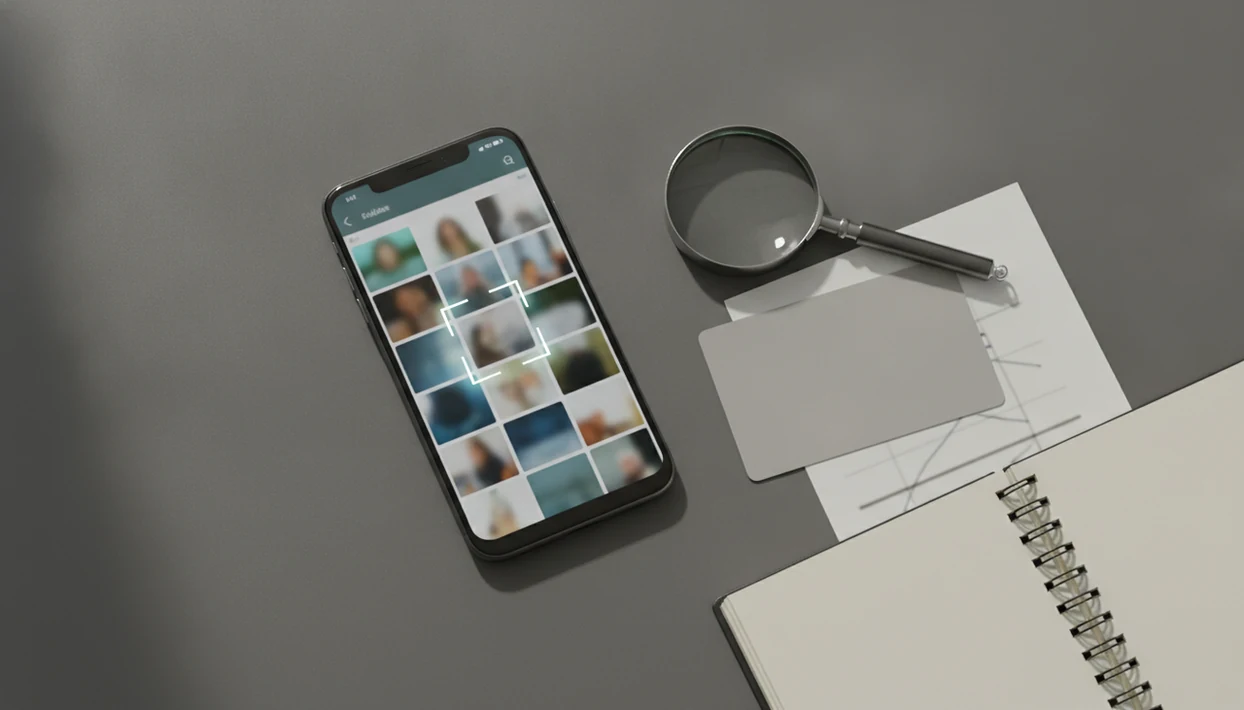
To learn how to check photo on Android, save or screenshot the image, search it with Google Lens or a browser image search, then compare public matches with the profile context before trusting it. Use careful cropping around the face, but treat results as clues rather than proof of identity.
Definition: Checking a photo on Android means finding the image on your phone, inspecting available details, and using public image-search or face-search-style tools to look for reused photos, scam clues, or matching webpages.
TL;DR
- Start with Google Photos or your Gallery app to find the saved image, screenshot, backup status, and visible details.
- Use Google Lens or browser-based reverse image search from the Android phone, cropping to the face or full image depending on the clue you need.
- For dating or scam checks, compare multiple matches, dates, captions, and profile details instead of trusting one search result.
Android Photo Check Requirements Before You Search
A reliable Android photo check starts before the search box opens. You need the image, a search tool, and a privacy decision about whether the upload is worth it.
- You need the saved photo, a screenshot, or access to the webpage image.
- You can start from Google Photos, Gallery, Chrome, the Google app, or another browser image search.
- Google Photos search depends on backup status; unbacked-up photos may not appear in account search.
- New backed-up photos can take 3–5 days to become searchable, according to Google Photos help source.
- Sensitive images should not be uploaded unless there is a clear safety reason.
The first practical check is boring: confirm where the file lives. Downloads, Screenshots, WhatsApp Images, and browser folders often hold different copies.
Small folder names matter.
How Android Reverse Face Search Works on a Photo
Android reverse face search compares visual patterns in a photo against public images and webpages; it returns possible matches, not proof of identity. The matching process may use image regions, visual similarity, and image embeddings, which are numerical summaries of what the image looks like.
Google describes Lens as a visual-search tool that lets you search what you see from an image or camera view source.
These tools can surface reused photos, stock-photo pages, old public posts, and visually similar images. They usually cannot see private accounts, deleted posts, hidden messages, or locked dating profiles. Cropping, filters, compression, screenshots, and low light can change the result quality.
A glossy profile portrait may match a grainy repost on an old public page. That mismatch is useful, but it still needs context.
Good face search app guides for finding people by photo, reverse face search, social profile lookup, and scam-photo checks deliver source trails and risk signals, not guaranteed identity verdicts.
How to Use Android Photo Search Tools Step by Step
Use Android photo search as a short verification workflow, not a one-tap decision. The safest process keeps the original image, tests different crops, and checks the source trail before acting.
1. Open the photo source
Open the image in Gallery, Google Photos, a chat, a dating app, Chrome, or the original webpage.
2. Save or screenshot the image
Save the file if possible; if not, take a screenshot with the date or visible context still showing.
3. Search with Lens or browser tools
Use Google Lens, Chrome image search, or another browser-based reverse image tool.
4. Crop the most useful image area
Search the face, then try the full photo, background, clothing, logos, or objects.
5. Compare matches before deciding
Review matching pages, dates, captions, usernames, and repeated appearances before drawing a conclusion. For phone-wide workflows, our guide on how to reverse face search with phone covers similar steps.
Step 1: Find the Photo on Android in Gallery or Google Photos
Where is the photo on my Android phone before I reverse search it? Start with Gallery or Google Photos, then check device folders, Downloads, Screenshots, chat-app folders, Archive, and Trash.
Google Photos can search by people, things, places, and Recently Added. That helps when the file name is useless, like “IMG202402192218.” However, Google says only backed-up photos are searchable, and some uploaded photos may take 3–5 days to appear in search results source.
We usually open three tabs before deciding: the original profile, the search result, and the platform help page. For beginners documenting public results, a face search app for OSINT beginners workflow can keep the review cleaner.
Step 2: Check a Dating Photo on Android With a Screenshot
Screenshots help when a dating app, chat, or webpage blocks downloads. They also preserve visible context, such as username, caption, profile age, message layout, or the app screen where the image appeared.
For a check dating photo on Android workflow, save one untouched screenshot first. Then crop a duplicate copy before uploading it to any search tool. That keeps private chat text, names, and phone notifications out of the search image.
We have seen the useful version happen under kitchen light: the match photo is zoomed, the username is visible, and the face crop is searched separately. The full screenshot gives context; the cropped face tests reuse. For dating-specific review habits, the face search app for dating profile verifiers guide goes deeper.
Step 3: Run a Reverse Face Search Android Photo Check
Run a reverse face search Android photo check with more than one image version. A face crop may find profile reuse, while the full image may reveal a hotel lobby, product logo, or stock-photo background.
- Open Google Lens from the Google app, Chrome, or the image viewer when available.
- Select part of the image if the tool lets you refine the search area.
- Use “Ask about this image” when it appears to narrow the visual question.
- Search the cropped face and the full image separately.
- Look for exact duplicates, older posts, stock-photo pages, and mismatched names.
Phone friction is real.
A battery warning during a face lookup is a good moment to save screenshots of the result pages. Tools like Face Search App, Google Lens, TinEye, and browser searches work best when the photo is treated as evidence to document, not a verdict; TinEye also describes its service as reverse image search for finding where an image appears online source.
Android Scam Photo Check Clues After You Get Matches
An Android scam photo check should focus on patterns across results. One match can be noise; repeated reuse across unrelated names is a stronger risk signal.
- The same face on multiple unrelated profiles can suggest reuse, impersonation, or stolen images.
- Dates matter; an older public post may explain where the image came from.
- Captions, locations, usernames, biographies, and claimed jobs should line up.
- No results does not mean the photo is safe, private, or original.
- Do not contact third parties aggressively or publish accusations from image search alone.
A passport-style image in a chat bubble deserves extra caution, especially if the same face appears under different first names. For broader verification methods, use a find person by photo guide only with lawful, consent-aware boundaries.
Common Android Photo Check Mistakes That Weaken Results
The most common mistake is searching one crop and treating the result as final. Android tools are sensitive to image quality, filters, compression, screenshots, and how much of the original scene remains visible.
Try the face, the full image, and one background clue. If the photo came through a messaging app, compression may soften the face enough to reduce matches. Old screenshots can also carry borders, buttons, and chat bubbles that confuse visual search.
Another mistake is assuming no Lens result means the person is genuine. It may only mean the image is private, new, cropped, or not indexed. Google Photos backup and indexing delays can create the same false confidence.
A possible visual match is not identity proof. Corroborate before acting.
Limitations
Android photo checks are useful, but they have hard limits. Treat every result as a clue that needs context, not as a final identity finding.
If the photo involves threats, extortion, suspected financial fraud, or a minor, stop the DIY investigation and preserve screenshots for the platform, bank, school, or local authority instead of confronting the person yourself.
- Reverse image search does not prove identity or intent.
- Browser tools usually cannot see private accounts, deleted pages, hidden messages, or locked profiles.
- A no-match result can happen because an image is new, private, cropped, compressed, filtered, or not indexed.
- Google Photos search depends on backup status and may take time after upload.
- Scam intent cannot be proven from a photo match alone.
- Similar-looking faces, twins, reposts, fan pages, and edited images can create false leads.
- Face Search App guidance should be used for personal verification, not stalking, doxxing, harassment, or public accusations.
When the result feels uncertain, document the result, close the laptop, and wait before messaging anyone. That pause prevents most bad decisions.
FAQ
How do I check photos in Gallery?
Open Gallery, find the image, inspect details if available, then use the share menu or Google Lens option if your Android version supports it. If sharing is blocked, save the image or take a screenshot.
Can Android search by face?
Android tools can search visually similar public images, including face-focused crops. They do not guarantee the exact identity of the person.
How do I reverse search screenshots?
Save the screenshot, open it in Google Photos, Gallery, Lens, or Chrome, then run an image search. Crop a duplicate if the screenshot contains private chat details.
Can Google Lens find fake profiles?
Google Lens can reveal reused images, matching webpages, or stock-photo sources. It cannot prove a profile is fake by itself.
Why does Lens show no matches?
Lens may show no matches because the image is private, new, cropped, compressed, filtered, or not indexed. No result is a clue, not proof of safety.
Should I crop the face first?
Crop the face when you want possible profile reuse. Search the full image too when backgrounds, uniforms, signs, or objects may provide context.
Can Google Photos find old pictures?
Google Photos can find backed-up images through search, Recently Added, Archive, and visual categories. New uploads may take several days to become searchable.
Is reverse image search private?
Reverse image search may process uploaded images outside your phone, depending on the tool. Avoid uploading sensitive photos unless the safety reason is clear, and use Face Search App guidance as verification support, not proof.